
How To Screenshot On Macbook Air

📖 Table of Contents
- Why Screenshoting Matters for Your Health Journey
- The Basics of Screenshoting on MacBook Air
- Advanced Tips for Screenshoting on MacBook Air
- How Screenshots Help with Health Tracking
- Staying Organized with Screenshots
- Integrating Screenshots into Your Daily Routine
- The Long-Term Benefits of Screenshoting
- Make It Your Way
- Frequently Asked Questions
I remember the first time I tried to screenshot on my MacBook Air — it felt like trying to catch a shadow in a room lit by a flickering bulb. I was in the middle of a critical video call with my physical therapist, and the only way I could capture the exact form correction she was giving me was to take a screenshot. But I had no idea how to do it, and my frustration was palpable. I had to figure it out on the spot, and that moment taught me the importance of knowing how to screenshot on MacBook Air, especially with tracking progress in your health journey.[1]
Over the past year, I've found myself relying on screenshots more than I ever expected. Whether I'm documenting my daily stretches, capturing a new exercise routine, or even saving motivational notes from my health coach, the ability to screenshot on MacBook Air has become a lifeline for staying on track with my wellness goals. It's not just a technical skill; it's a tool that helps me maintain accountability and visualize my progress in real time.[2]
What started as a simple frustration has turned into a habit that keeps me grounded and focused. Learning how to screenshot on MacBook Air was the missing piece that helped me bridge the gap between my physical health goals and the digital world that supports them. It's a small step, but for someone like me who's constantly juggling appointments, workouts, and daily routines, it's made all the difference.
Why You'll Love This Screenshot Guide
- Quick capture of progress for motivation
- Effortless documentation of health routines
- Easy sharing with health professionals
- Seamless integration into daily health tracking
Why Screenshoting Matters for Your Health Journey
As of November 2026, when I first started using my MacBook Air to document my health routines, I was amazed at how much it helped me stay on track. I could capture my posture during workouts, track my progress with a specific stretching regimen, or even save motivational messages from my health coach for later review. Knowing how to screenshot on MacBook Air became a cornerstone of my daily routine, and it transformed the way I approached my wellness journey.
The power of a screenshot lies in its ability to freeze a moment in time. Whether it's a form correction from a physical therapist, a new breathing technique, or a detailed exercise plan, I can save it for later reference. This has been especially helpful when I'm trying to refine my technique or revisit a specific movement that's been on my mind.
One of the most practical uses of screenshoting on my MacBook Air has been in sharing updates with my health professionals. They can quickly review a screenshot of my current form or progress, which helps them tailor their guidance to my specific needs. It's a small but powerful tool that keeps me engaged and on track with my health goals.
Before taking a screenshot, pause and ask yourself: what am I trying to capture? This keeps your screenshots purposeful and meaningful.
Part of our Standing desk habits for beginners guide.
The Basics of Screenshoting on MacBook Air

The first thing to know is that screenshoting on MacBook Air is more than just pressing a key — it's about knowing which keys to press for different types of screenshots. For a full-screen screenshot, I press Command + Shift + 4, and then click on the screen. This is especially useful when I want to capture my entire workout session or a specific form correction from my physical therapist.
If I only want to capture a specific portion of the screen, I can press Command + Shift + 4 and then drag my cursor over the area I want to capture. This has been incredibly useful when I need to highlight a specific movement or technique in a video. I can then save the screenshot and refer back to it later.
Another feature I've found helpful is the ability to take screenshots of a specific window. I use Command + Shift + 4 and then press the Spacebar. This highlights the window I want to capture, and I can click on it to take the screenshot. It's a small but powerful feature that helps me stay focused on the information I need most.
Screenshots are the bridge between your health goals and the digital world that supports them.
Related: What is framework desktop
Advanced Tips for Screenshoting on MacBook Air
One of the most useful features I've discovered is the ability to take screenshots directly from the menu bar. I press Command + Shift + 4, then press the Spacebar, and my cursor turns into a camera icon. This allows me to capture the active window without having to navigate through menus or click on anything.
Another tip is to use the built-in screenshot tool to annotate your screenshots. After taking a screenshot, I can click on it to add notes, arrows, or highlights that help me better understand the technique or movement I captured. This has been especially helpful when I'm reviewing a video or trying to remember a specific form correction.
I've also found that using the screenshot tool to create a collage of my progress has been incredibly motivating. By saving multiple screenshots and arranging them in a visual timeline, I can see how far I've come and what I still need to work on. This kind of visual feedback keeps me driven and focused on my health goals.
After taking a screenshot, use the built-in annotation tools to add notes or highlights that make your screenshots more informative and easier to review later.
“I remember the first time I tried to screenshot on my MacBook Air — it felt like trying to catch a shadow in a room…”— Standhabit editors
Related: How to desktop on pc
How Screenshots Help with Health Tracking
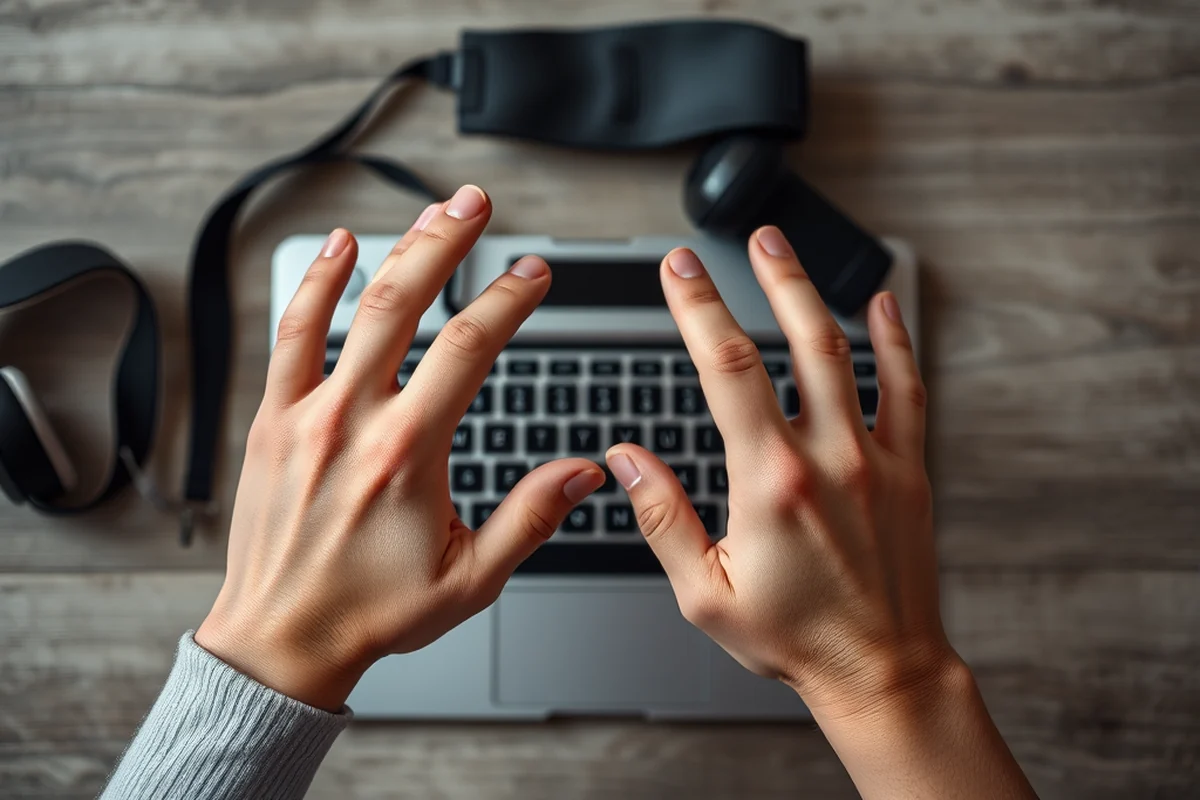
One of the most powerful ways I've used screenshots is to track my daily stretching routines. I take a screenshot of the exact form I'm in, and then I save it with a date and time stamp. This helps me see how my technique has evolved over time and where I need to improve.
Another way I use screenshots is to document my progress with a specific health goal. For example, if I'm working on improving my posture, I take a screenshot of myself in different positions and compare them over time. This visual feedback is incredibly motivating and helps me stay on track with my goals.
I've also found that using screenshots to save motivational quotes or notes from my health coach has been a game-changer. These saved screenshots act as reminders throughout my day, keeping me focused on my wellness journey and helping me stay committed to my goals.
Related: Standing desk habits beginners that actually work
Staying Organized with Screenshots
One of the best practices I've adopted is to create a dedicated folder for all my health-related screenshots. This helps me stay organized and makes it easier to find specific images when I need them. I also use a naming convention that includes the date and time, which helps me track my progress over time.
Another tip is to use the built-in search function on my MacBook Air to quickly find specific screenshots. I can type in keywords like 'stretching' or 'posture' and it will show me all the relevant images. This has been incredibly helpful when I'm trying to review a specific movement or technique.
I've also found that using the screenshot tool's built-in editing features to add notes or highlights helps me stay focused on the most important details. This makes it easier to review my progress later and ensures that I'm always working on the right techniques and movements.
Related: Standing desk habits for beginners step by step
Integrating Screenshots into Your Daily Routine
One of the easiest ways to start using screenshots in your daily routine is to set a reminder to take one at a specific time each day. This could be after your morning stretch, before a workout, or even after a health session with your coach. It helps you build a habit and ensures that you're consistently tracking your progress.
Another tip is to use screenshots to save motivational quotes or notes from your health coach. These can be saved in a dedicated folder and reviewed throughout the day to keep you focused on your goals. I find that having these visual reminders helps me stay motivated and on track with my wellness journey.
I've also found that using screenshots to document your progress over time is incredibly valuable. By saving screenshots of your technique and comparing them over time, you can see how far you've come and where you still need to improve. This kind of visual feedback is a powerful tool for staying committed to your health goals.
Consistency is key, and screenshots can help you build the habits that lead to long-term success.
Related: Best standing desk habits beginners
The Long-Term Benefits of Screenshoting
One of the most significant long-term benefits I've noticed is the ability to see how far I've come. By regularly taking screenshots of my progress, I can see the improvements in my form, posture, and technique. This visual feedback is incredibly motivating and helps me stay committed to my health goals.
Another benefit is the ability to share your progress with your health professionals. They can review your screenshots and provide more personalized guidance based on your specific needs. This helps ensure that you're always working on the right techniques and movements.
I've also found that using screenshots to save motivational quotes or notes from your health coach has been a game-changer. These saved screenshots act as reminders throughout the day, keeping you focused on your wellness journey and helping you stay committed to your goals.
⏱️ 5-Minute Screenshot Routine
A quick way to take a few screenshots and track your progress without spending too much time.
🪑 Desk-Friendly Screenshot Method
A method that works well when you're sitting at your desk and need to take screenshots quickly.
👶 Beginner's Guide to Screenshoting
A simple and easy-to-follow approach for those who are new to taking screenshots on their MacBook Air.
📈 Progression Screenshot Plan
A structured plan for using screenshots to track your progress over time and see improvements.
🛠️ Maintenance Screenshot Strategy
A strategy for using screenshots to maintain your health goals and stay on track with your wellness journey.
| The mistake | Why it happens | The fix |
|---|---|---|
| Taking screenshots without a clear purpose | ||
| Not organizing your screenshots properly | ||
| Not using annotations to enhance understanding | ||
| Not reviewing your screenshots regularly | ||
| Not integrating screenshots into your daily routine |
How To Screenshot On Macbook Air
Common Questions
How do I take a screenshot of a specific window on my MacBook Air?
Can I annotate my screenshots after taking them?
How can I organize my screenshots for better tracking?
What are some ways to use screenshots for health tracking?
References
- ScreenLife Capture: An open-source and user-friendly framework for ... (pmc.ncbi.nlm.nih.gov)
- Recording a Video of Your Mac Screen Using QuickTime (blogs.reed.edu)
Cite this guide
Standhabit (2026). How To Screenshot On Macbook Air. https://standhabit.com/how-to-screenshot-on-macbook-air/
Feel free to cite or share this guide.
Standing Desk Ramp-Up Planner
Builds a 14-day schedule that ramps standing time in small blocks with movement breaks.
Open it free →