
How To Take Screenshot In Samsung

📖 Table of Contents
- Understanding the Basics of Taking Screenshots on Samsung
- Why Taking Screenshots Can Improve Your Health Habits
- Customizing Your Screenshot Settings for Better Results
- Taking Screenshots of Health Apps and Resources
- Using Screenshots to Stay Organized and Informed
- The Benefits of Screenshots for Health and Wellness
- Tips for Taking Effective Screenshots on Samsung
- Make It Your Way
- Frequently Asked Questions
I used to think that taking screenshots on my Samsung phone was something only tech experts could do. But a few months ago, I was trying to save a health-related article that had a specific meditation guide, and I hit a button on my phone I had never noticed before. That one moment made me realize how much I had been missing by not knowing how to take a screenshot in Samsung. Since then, I've become more intentional about using this feature to document my health journey, track progress, and share resources with my community.[1]
Taking screenshots on my Samsung device has become an essential tool in my daily health routine. Whether it's saving a workout routine from a fitness app, capturing a reminder about hydration, or even noting down a new health tip from a podcast, the ability to quickly take a screenshot in Samsung has transformed the way I manage my wellness. I no longer have to rely on my memory or take notes by hand—everything is just a tap away.
I've noticed that many people, especially those who are new to smartphones or even some who have been using them for years, are unaware of how to take a screenshot in Samsung. I used to be one of them, and it wasn't until I stumbled upon the feature by accident that I realized how simple and useful it can be. Now, I use this feature daily to track my health goals, and I've found it to be an invaluable part of my wellness toolkit.[2]
Why You'll Love This Guide
- Quickly save health tips and resources for later use.
- Document your wellness journey with ease and clarity.
- Stay organized and informed about your health goals.
- Share actionable health insights with friends and family.
Understanding the Basics of Taking Screenshots on Samsung
As of November 2026, the first method I discovered is using the power and volume buttons. On most Samsung devices, pressing and holding the power button and the volume up button at the same time will capture a screenshot. I remember the first time I did this—it felt like a small but significant victory in my quest to be more organized with my health notes.
Another option is using the palm swipe feature, which allows you to swipe your hand across the screen to take a screenshot. I found this method particularly useful during my workouts when my hands were full. It's a great way to capture a reminder without interrupting your routine.
I also like using the screenshot shortcut in the Samsung Galaxy app. This method is a bit more involved but allows me to customize my screenshot settings, which comes in handy when I want to save only specific parts of the screen for later reference.
If you're in the middle of a yoga session or a quick workout, the palm swipe feature is a great way to take screenshots without interrupting your flow. This keeps your focus on the activity while still capturing important notes or instructions.
Part of our Standing desk habits mistakes form fixes guide.
Why Taking Screenshots Can Improve Your Health Habits
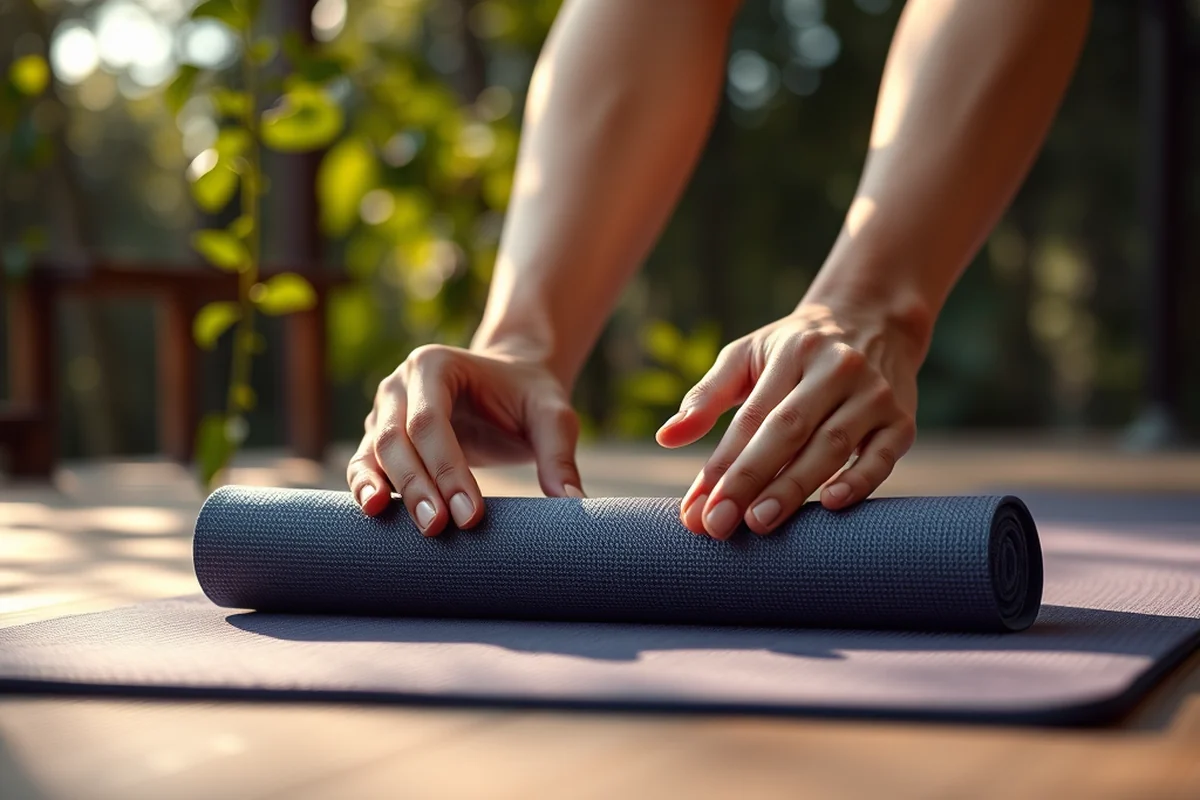
I started taking screenshots of my daily health goals, and it made a noticeable difference in my consistency. Whether it was a reminder to drink water, take a vitamin, or stretch for a few minutes, having it saved on my phone made it easier to follow through.
Another benefit I've noticed is that taking screenshots helps me stay accountable. When I set a goal, like walking 10,000 steps a day, I can save the information and refer back to it throughout the day. It's a small but effective way to stay motivated and focused.
I've also found that taking screenshots of health tips from articles or videos helps me retain the information better. When I review the screenshots later, I'm more likely to remember the advice and put it into practice.
Taking screenshots is a simple way to stay on top of your health goals.
Related: How to screenshot on windows 11
Customizing Your Screenshot Settings for Better Results
One of the first things I learned was how to adjust the screenshot shortcut. In the Samsung Galaxy app, I found that I could change the shortcut to use a different combination of buttons or even assign a gesture to take a screenshot. This customization made it easier for me to capture screenshots without disrupting my workflow.
I also discovered that I could enable the screenshot timer, which gives me a few seconds to adjust my position or prepare for the shot. This was especially helpful when I needed to capture a screen that was in motion or had a lot of activity going on.
Another useful feature is the ability to crop screenshots. This allows me to focus on specific parts of the screen rather than saving the entire image. I find this particularly useful when I want to save a health tip from a long article without saving unnecessary text.
If you're capturing screens that are in motion or changing rapidly, using the screenshot timer gives you a few extra seconds to get the shot just right. This is especially helpful during live health webinars or workout videos.
“I used to think that taking screenshots on my Samsung phone was something only tech experts could do.”— Standhabit editors
Related: Screenshot on dell
Taking Screenshots of Health Apps and Resources
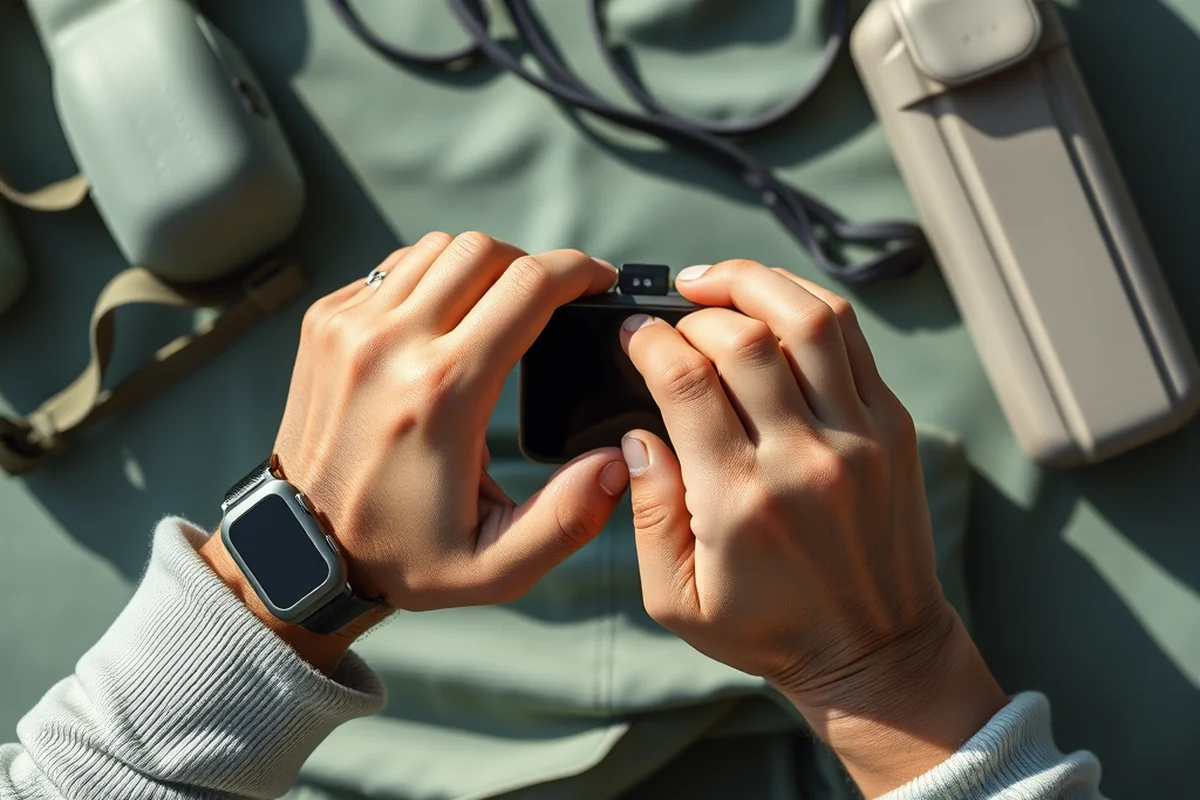
I use my Samsung phone to take screenshots of my favorite health apps, like MyFitnessPal and Headspace. These screenshots help me remember my calorie intake, track my meditation progress, and revisit workout routines when I'm feeling stuck.
I've also found that saving screenshots of articles or videos about health topics is a great way to keep track of what I've learned. When I review these screenshots later, it's like revisiting a mini-lesson on a specific health topic.
One thing I've noticed is that taking screenshots of health resources helps me stay consistent with my goals. Whether it's a reminder to take my medication or a video on stress management, having it saved on my phone makes it easier to follow through.
Related: What is the screenshot on windows 11
Using Screenshots to Stay Organized and Informed
I use screenshots to create a visual diary of my health journey. Whether it's a photo of my meal prep, a screenshot of my workout log, or a reminder to take my supplements, I can look back on these images and see how far I've come.
I've found that having a collection of screenshots also helps me stay motivated. When I'm feeling down or unmotivated, I can look at my progress and remind myself of how far I've come. This makes it easier to stay on track and keep pushing forward.
Another benefit of using screenshots is that I can easily share them with friends or family who are also working on their health goals. This helps me stay accountable and gives me a support system to rely on when I need it most.
Related: Standing desk habits mistakes form fixes ideas
The Benefits of Screenshots for Health and Wellness
I've noticed that taking screenshots helps me stay consistent with my health goals. Whether it's a reminder to drink water, take a vitamin, or stretch for a few minutes, having it saved on my phone makes it easier to follow through.
Screenshots are more than just images—they're tools for better health.
Related: Standing desk habits mistakes form fixes mistakes to avoid
Tips for Taking Effective Screenshots on Samsung
⏱️ 5-Minute Screenshot Guide
A quick and efficient way to learn how to take screenshots on Samsung in just five minutes.
🪑 Desk-Friendly Method
Ideal for users who prefer to take screenshots while sitting at a desk or working on a laptop.
👶 Beginner's Approach
A simplified and step-by-step method for those who are new to using Samsung devices.
📈 Progression Plan
A structured approach to mastering the different ways of taking screenshots as your skills improve.
🛠️ Maintenance Routine
A regular practice to ensure that you continue to use screenshots effectively in your health journey.
| The mistake | Why it happens | The fix |
|---|---|---|
| Not knowing how to take screenshots on Samsung. | Many people are unaware of the different methods to take screenshots, which can lead to missed opportunities for tracking health goals and saving important information. | Familiarize yourself with the different screenshot methods on Samsung, such as using the power and volume buttons, palm swipe gesture, or screenshot shortcut in the Galaxy app. |
| Not customizing screenshot settings to fit your needs. | Not customizing your screenshot settings can make it harder to take screenshots efficiently, especially if you're using your phone for health tracking or saving important information. | Explore the screenshot settings in the Samsung Galaxy app and adjust them to suit your preferences, such as changing the shortcut or enabling the screenshot timer. |
| Saving screenshots without organizing them. | If you save screenshots without organizing them, it can be difficult to find them later, which can lead to frustration and missed opportunities for reviewing health tips or progress updates. | Create a folder or label your screenshots so they're easy to find and review later. This will help you stay organized and motivated. |
| Using screenshots only for short-term goals. | Many people use screenshots for short-term goals but fail to use them as a long-term tool for tracking progress and staying on track with their health goals. | Make it a habit to take screenshots of your health goals and revisit them regularly. This will help you stay consistent and motivated over time. |
How To Take Screenshot In Samsung
Common Questions
What are the different ways to take a screenshot on Samsung?
Can I customize the way I take screenshots on my Samsung device?
How can taking screenshots help with my health goals?
What are the benefits of using the screenshot timer feature?
References
Cite this guide
Standhabit (2026). How To Take Screenshot In Samsung. https://standhabit.com/how-to-take-screenshot-in-samsung/
Feel free to cite or share this guide.
Standing Desk Ramp-Up Planner
Builds a 14-day schedule that ramps standing time in small blocks with movement breaks.
Open it free →